Install or Build ASVSim on MacOS (Apple Silicon)
ASVSim now supports native Apple Silicon (arm64) on macOS.
Install Unreal Engine
- Download the Epic Games Launcher. While the Unreal Engine is open source and free to download, registration is still required.
- Run the Epic Games Launcher, open the
Unreal Enginetab on the left pane. Click on theInstallbutton on the top right, which should show the option to download Unreal Engine 5.5.X. Chose the install location to suit your needs, as shown in the images below. If you have multiple versions of Unreal installed then make sure the version you are using is set tocurrentby clicking down arrow next to the Launch button for the version. Make sure that the install path does not contain spaces. E.g. if you are using an external drive called My Drive, rename it to My_Drive before installing Unreal Engine on it.
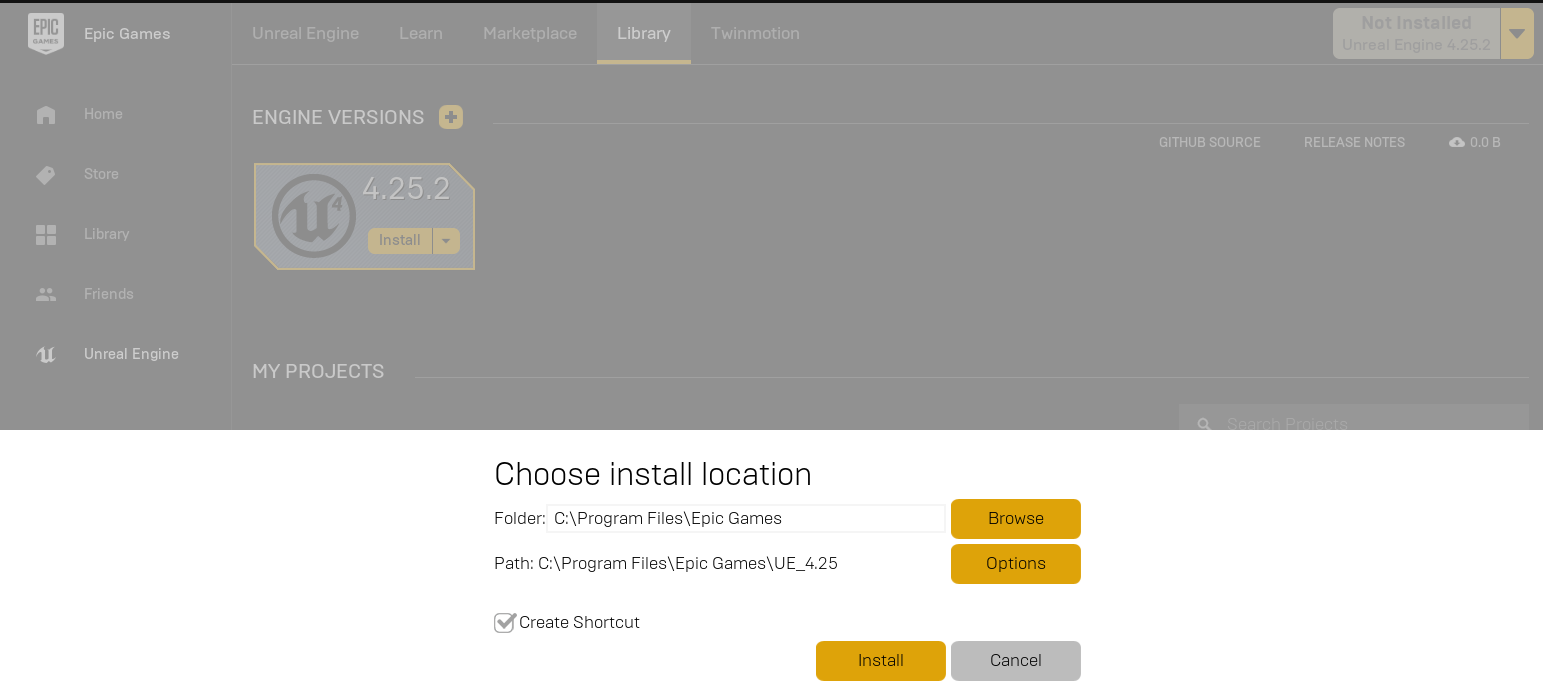
!!! tip
If your Unreal Engine install path contains spaces, create a symlink to a path without spaces and use that symlink when running GenerateProjectFiles:
ln -s "/Users/you/Unreal Engine/UE_5.5" /Users/you/UE_5.5
Build ASVSim
- Install the latest version of Xcode and Apple Developer from the App Store.
- Install the Metal Toolchain (required for Apple Silicon rendering):
sudo xcodebuild -downloadComponent MetalToolchain - Clone the repo:
git clone https://github.com/BavoLesy/ASVSim.git, and go the ASVSim directory bycd ASVSim. - Run
./setup.shfrom the terminal. This will download all necessary packages. - Run
./build.shfrom the terminal. This will create ready to use plugin bits in theUnreal/Pluginsfolder that can be dropped into any Unreal project.
Build Unreal Project
Finally, you will need an Unreal project that hosts the environment for your vessels. Make sure to close and re-open the Unreal Engine and the Epic Games Launcher before building your first environment if you haven't done so already. After restarting the Epic Games Launcher it will ask you to associate project file extensions with Unreal Engine, click on 'fix now' to fix it. ASVSim comes with a built-in "Blocks Environment" which you can use, or you can create your own. Please see setting up Unreal Environment.
How to Use ASVSim
Once ASVSim is set up by following above steps, you can,
- Navigate to directory
Unreal/Environments/Blocksand run./update_from_git.sh. - Generate the Xcode project by running
./GenerateProjectFiles.sh {PATH_TO_UE_5.5}. If your UE path contains spaces, use a symlink (see tip above). - Open the Xcode project by running
open "Blocks (Mac).xcworkspace"(or .xcworkspace file in your own custom Unreal project). If you don't see a .xcworkspace file then you probably haven't completed steps in Build Unreal Project section above. - In Xcode, set the scheme to UnrealEditor.app (located at
UnrealEngine/Binaries/Mac/).
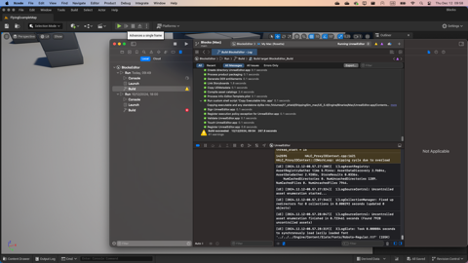
- Now run the project from Xcode. Compilation and launching Unreal Engine for the first time can take several minutes.
!!! tip Go to 'Edit->Editor Preferences', in the 'Search' box type 'CPU' and ensure that the 'Use Less CPU when in Background' is unchecked.
See Using APIs and settings.json for various options available.
FAQ
I get an error 0x0000 0x0000 0x0000... or 0x00 is not a valid start of file when running build.sh
This has to do with how MacOS deals with files that are on cross-platform file systems (like external drives). Run dot_clean . in the root directory of AirSim. If this throws permission errors use sudo chmod -R 777 . to provide yourself all nescessary permissions.
Xcode conflicts when running Unreal Engine on Mac
If you encounter issues with Xcode and Unreal Engine compatibility, see this Unreal Engine forum post for troubleshooting. Make sure you are using Xcode 26.2.0 or later.